

Feedback requires a Pro or Enterprise plan.
- Identify successful content: Pages with the most positive feedback show what works well in your documentation.
- Prioritize improvements: Pages with the most negative feedback indicate what content might need attention.
- Take action: Make documentation updates based on direct user feedback.
Enable feedback
If you disable telemetry in your
docs.json file, you cannot enable feedback features.- Navigate to the Add-ons page.
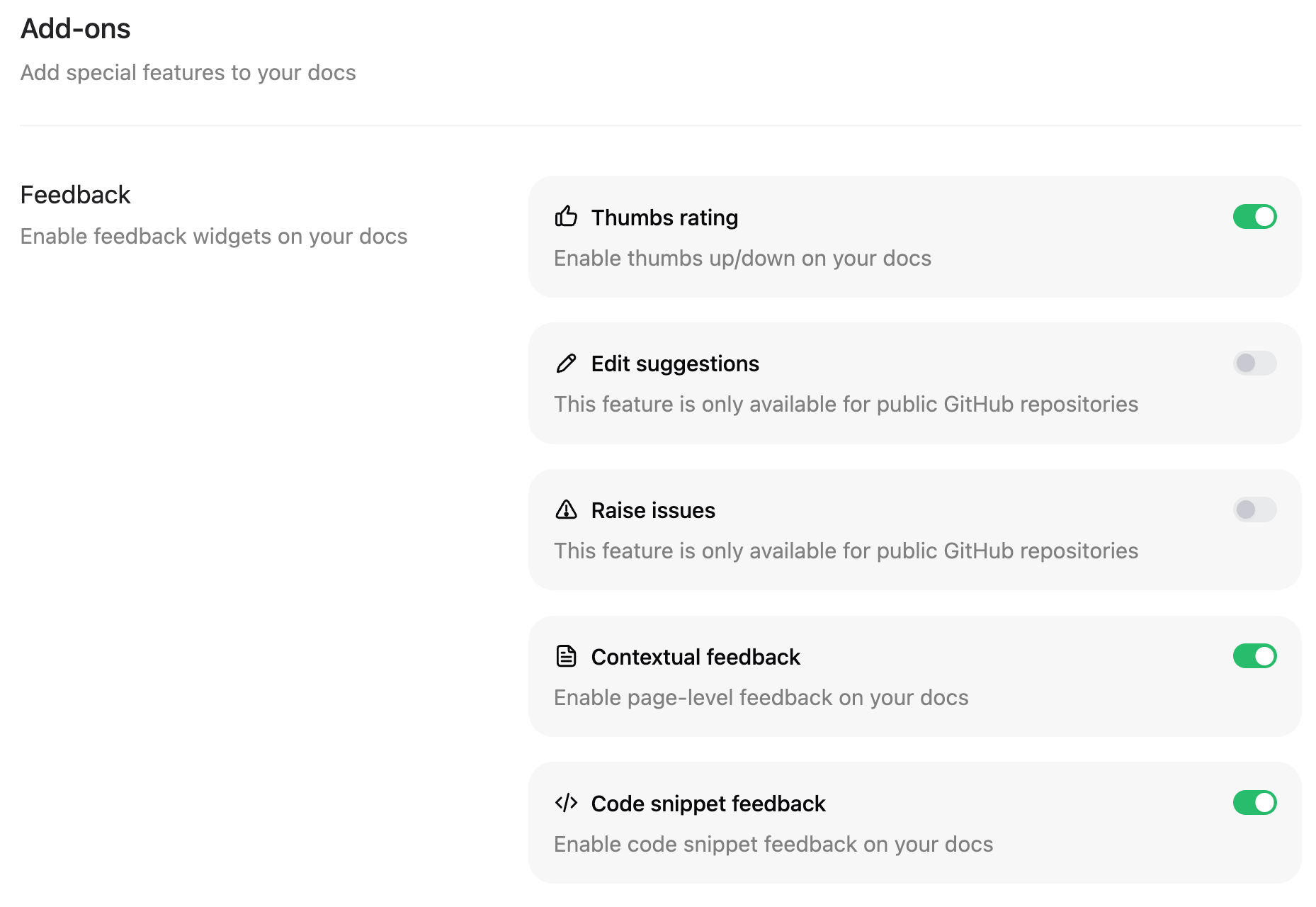
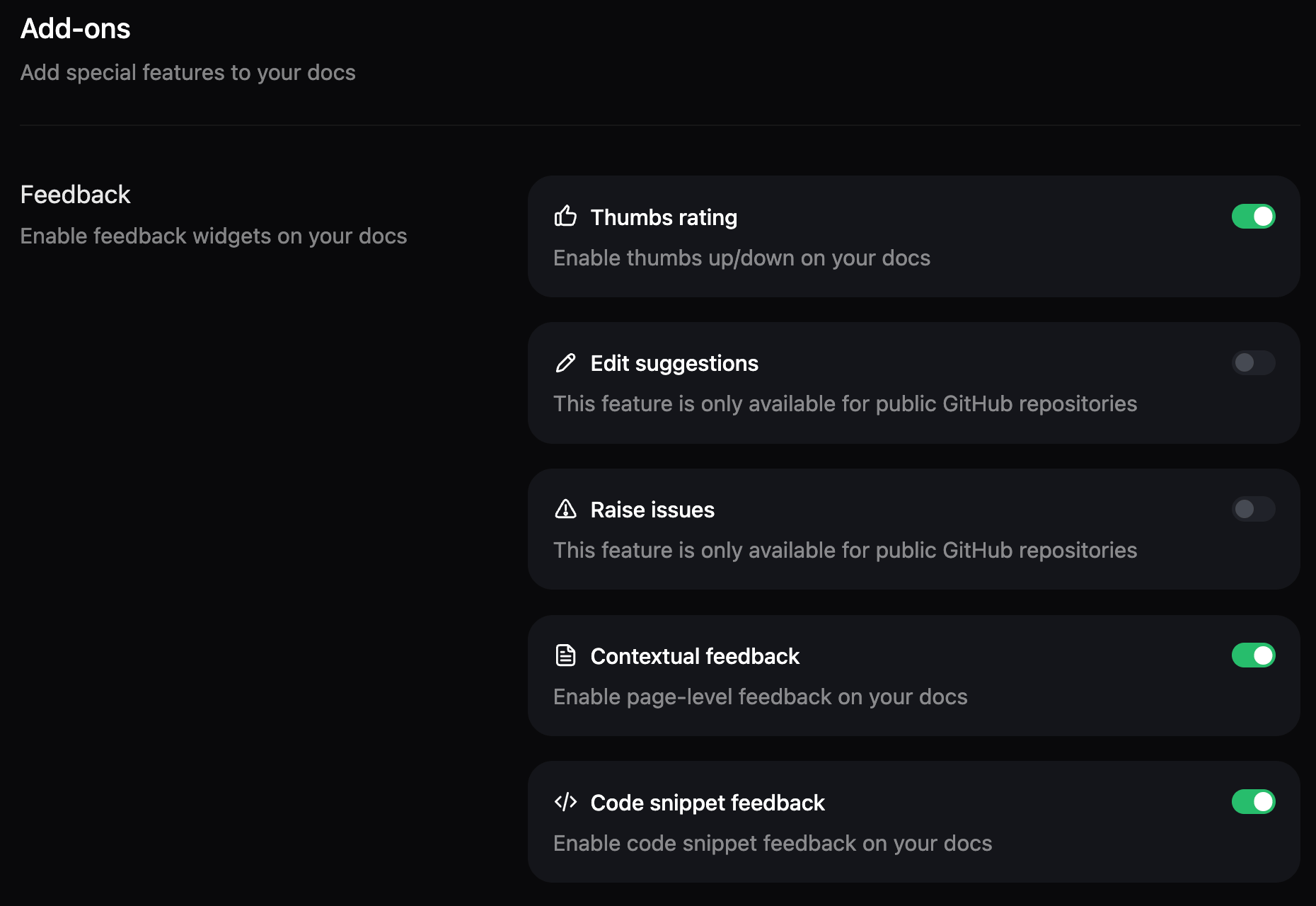
- Enable your desired feedback types.
- Thumbs rating: Simple thumbs up/down voting to gauge overall satisfaction with pages.
- Edit suggestions: Allow users to suggest edits to your documentation. Only available for public repositories.
- Raise issues: Allow users to create issues directly from your site. Only available for public repositories.
- Contextual feedback: Free form feedback about the content of a page. Optionally, enable email collection to allow users to provide their email address when submitting feedback.
- Code snippet feedback: Feedback specifically on code snippets.
- Agent feedback: Feedback submitted by third-party AI agents that access your documentation.
Manage feedback
You can set the status of a piece of feedback and add internal notes to track your work resolving user feedback.Change feedback status
Select the status beside a piece of feedback to mark it as Pending, In Progress, Resolved, or Dismissed. Best practices for setting feedback statuses:- Pending: Feedback is awaiting review.
- In Progress: Work is in progress to address the feedback.
- Resolved: You resolved the feedback.
- Dismissed: Feedback is irrelevant or inaccurate.
Filter by status
Use the Filters menu to control which feedback displays. Clear a status to hide all feedback with that status. By default, all feedback types display.Filter by type
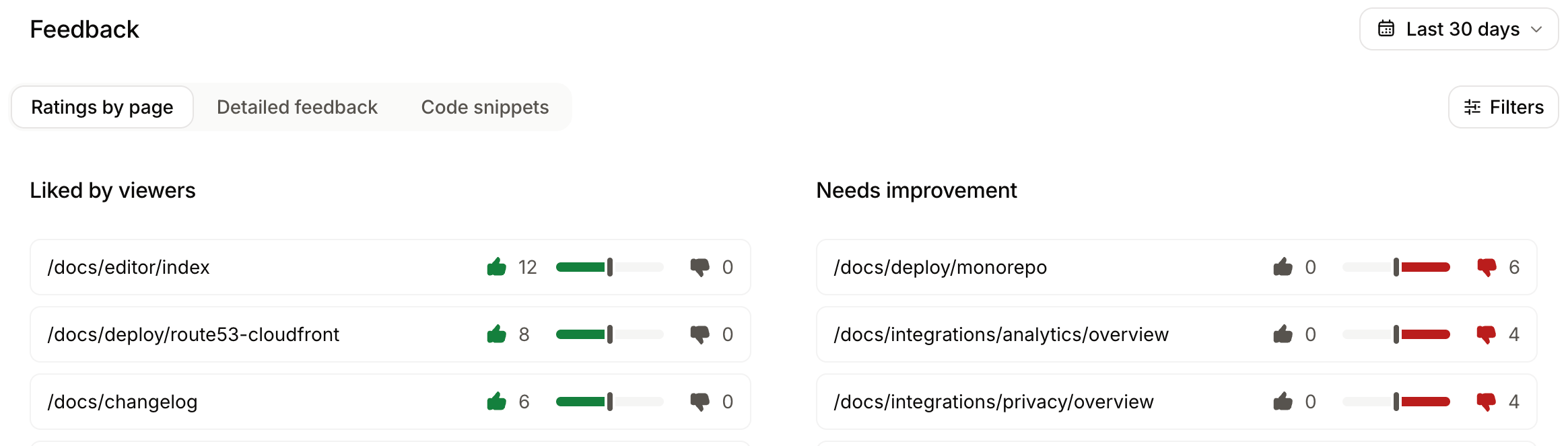
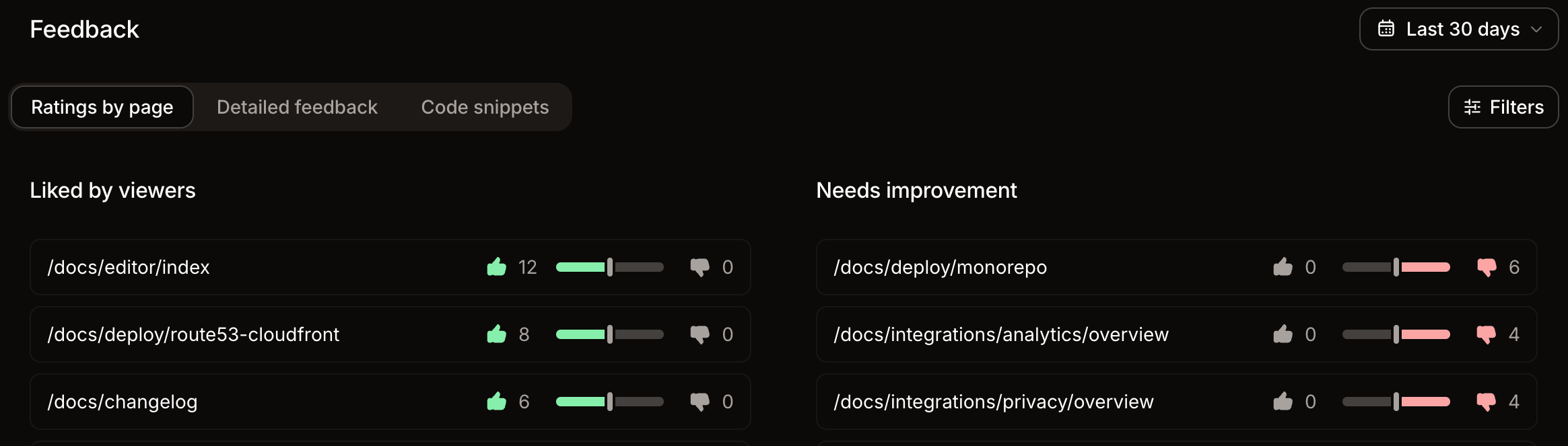
Select between Ratings by page, Detailed feedback, and Code snippets depending on the information you want to analyze.- Ratings by page: See which pages have the most positive and negative feedback. Use this quantitative data to identify pages that users find most and least helpful.
- Detailed feedback: Review the open feedback users leave on pages to identify targeted improvements to specific pages. Detailed feedback only displays feedback that includes additional information. Submissions that use only the thumbs up or thumbs down rating without selecting an additional feedback option do not appear in the detailed view.
- Code snippets: Review the open feedback users leave on code snippets to identify targeted improvements to specific blocks of code.
Add internal notes
Click a piece of feedback to add an internal note. These notes are only visible to people with access to your dashboard. Use notes to add information for collaboration, link relevant support or engineering tickets, or remember any other useful information.Agent feedback
Agent feedback is in beta and subject to change.
How agent feedback works
You must enable agent feedback in your dashboard to collect it. Once enabled, Mintlify appends an<AgentInstructions> block with instructions and the endpoint for submitting feedback when an agent fetches a page using Markdown export.
Agents post feedback to the endpoint with the page path and feedback text. The feedback appears in the dashboard alongside human feedback.
The feedback endpoint is always available at https://your-domain.com/feedback as a POST request, even if you don’t add the instructions to the Markdown export. You can prompt agents to submit feedback manually by posting to the endpoint.
Retrieve agent feedback via API
Use the analytics feedback endpoint to retrieve agent feedback programmatically. Filter bysource=agent to return only agent feedback.
Agent feedback responses include:
comment: The feedback text submitted by the agent.path: The path of the page the feedback is about.