

Menu options
The contextual menu includes several pre-built options that you can enable by adding their identifier to your configuration.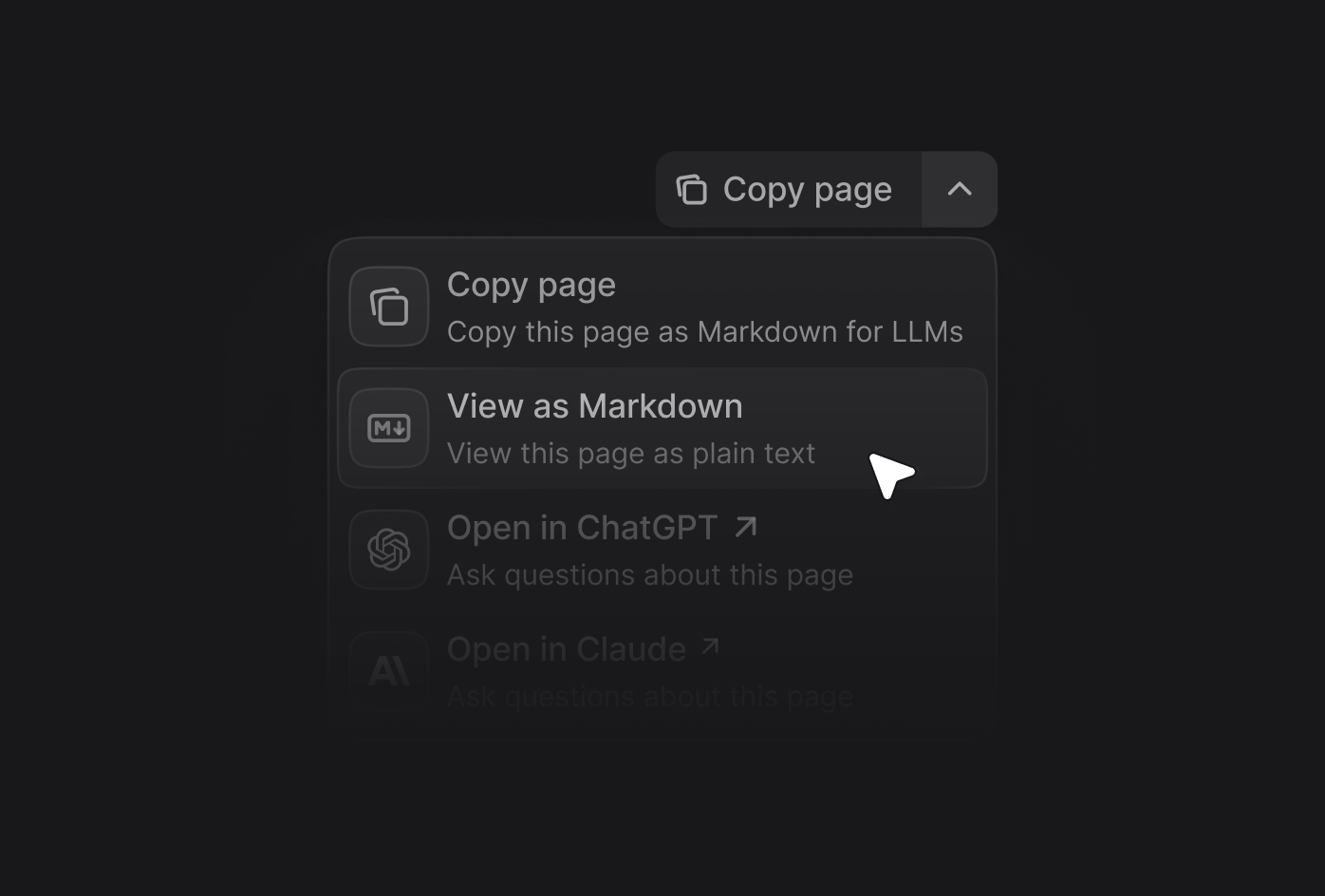
Enable the contextual menu
Add thecontextual field to your docs.json file and specify which options you want to include.
Display location
By default, the contextual menu appears in the page header. You can configure it to display in the table of contents sidebar instead using thedisplay option.
Add custom options
Create custom options in the contextual menu by adding an object to theoptions array. Each custom option requires these properties:
The title of the option.
The description of the option. Displayed beneath the title when the contextual menu expands.
You must include one of
icon or src.The icon to display from an icon library.Options:
- Font Awesome icon name, if you have the
icons.libraryproperty set tofontawesomein yourdocs.json - Lucide icon name, if you have the
icons.libraryproperty set tolucidein yourdocs.json - Tabler icon name, if you have the
icons.libraryproperty set totablerin yourdocs.json
Path or URL to an image to use as the icon. Use
src instead of icon when you want to use a custom image rather than an icon from a library.Options:- Path to an image file in your project (for example,
/images/my-icon.svg) - URL to an externally hosted image (for example,
https://example.com/icon.png)
The Font Awesome icon style. Only used with Font Awesome icons.Options:
regular, solid, light, thin, sharp-solid, duotone, brands.The href of the option. Use a string for simple links or an object for dynamic links with query parameters.
Custom option examples
Simple link
Simple link
Dynamic link with page content
Dynamic link with page content